Screenshot a Tab
Free Chrome extension
Full page screenshots that don't break
Capture a whole web page in one click and save it as PNG, JPG or PDF. Works on long articles, chat apps and dashboards. Crop, highlight or blur before you save.
Add to Chrome, it's free See features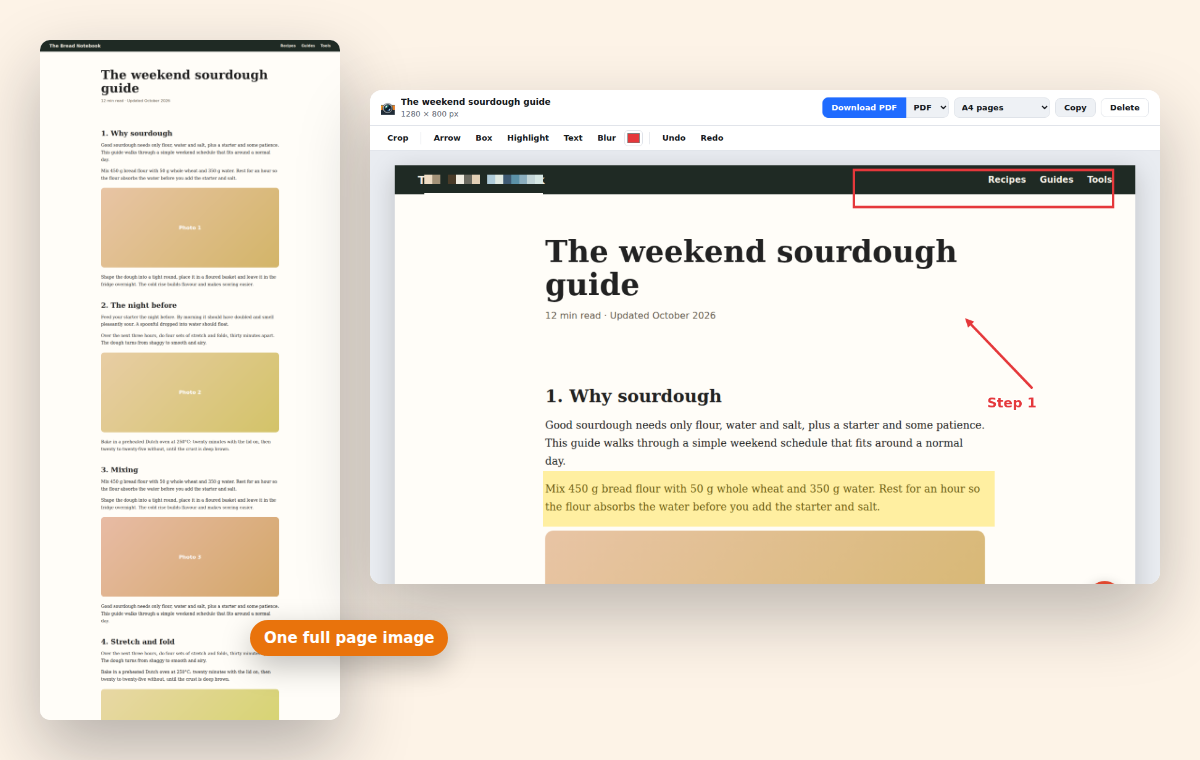
Everything a screenshot tool should do
Four ways to capture, three ways to save, and an editor for the last touches.
Full page screenshot
Scrolls and stitches the page for you. Sticky menus and chat buttons appear once, not on every screen.
Save as PDF
Turn any page into a PDF with A4 or Letter pages, or one long page. Also PNG and JPG.
Chat apps and dashboards
Captures the panel that actually scrolls in Gmail, Notion, ChatGPT and other web apps.
Area, element or visible part
Drag a rectangle, click an element (even a tall one), or grab what's on screen. With a delay timer.
Crop, highlight, blur
Point things out with arrows, boxes and text, and blur names or emails before you share.
Private by default
Runs on your computer. It only touches the tab you click, when you click. No uploads, no tracking.
Screenshot a whole ChatGPT conversation
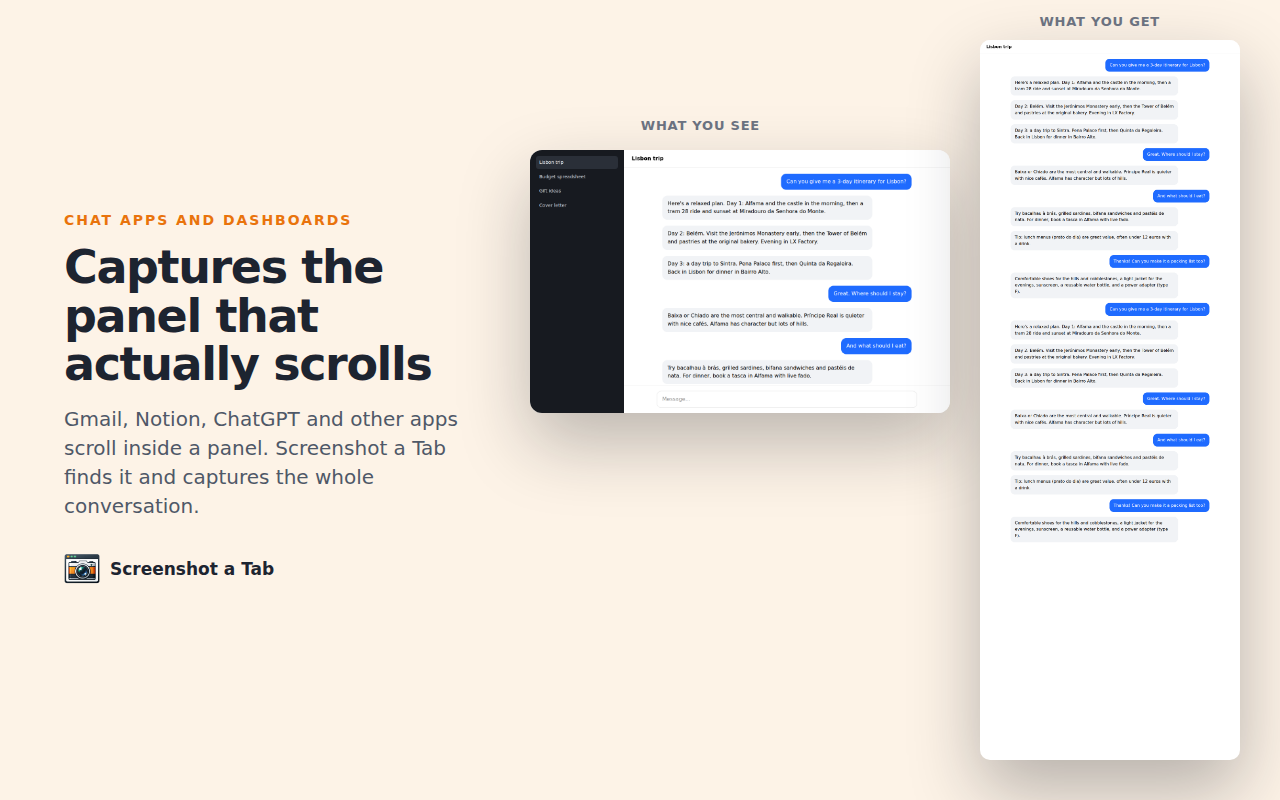
Many apps scroll inside a panel instead of the page, so most screenshot tools only capture one screen. Screenshot a Tab finds the panel that scrolls and captures all of it, from the first message to the last.
Webpage to PDF, without the print dialog
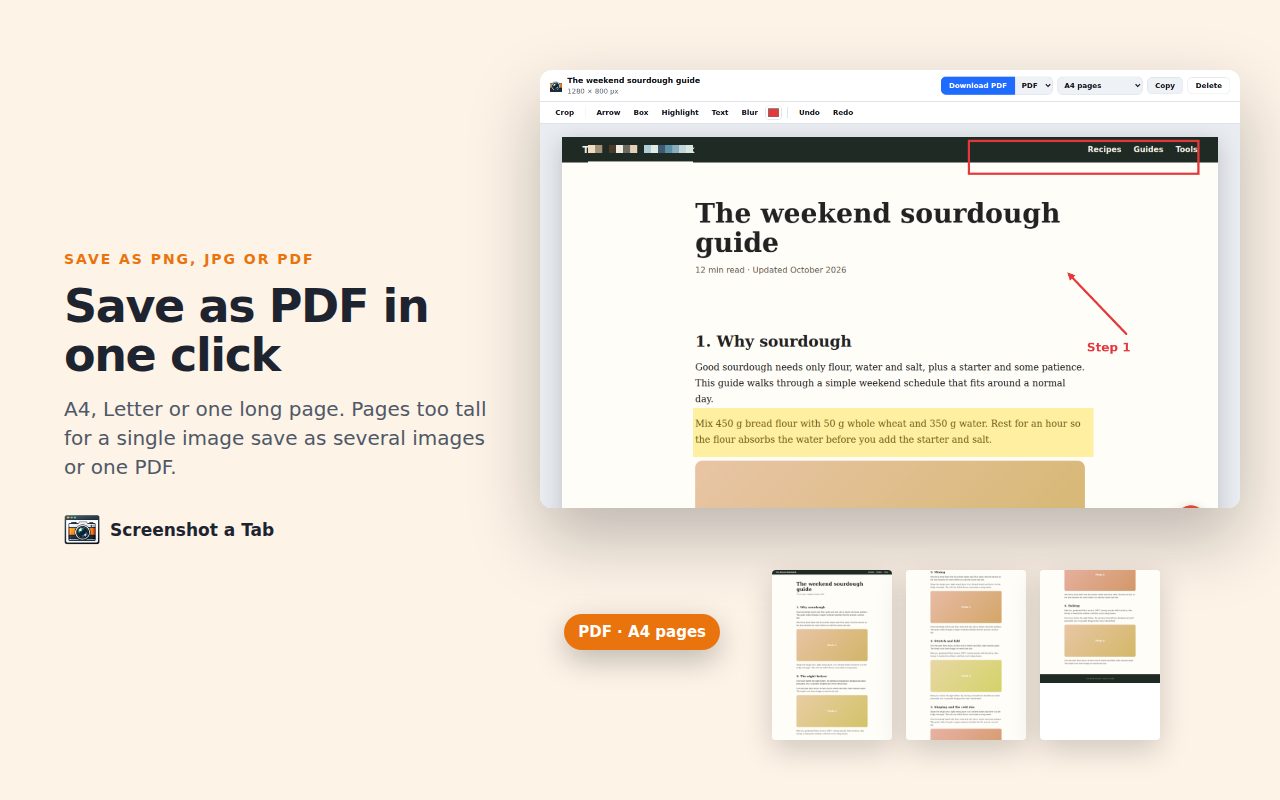
Pick A4, US Letter or one long page and download. Pages too tall for a single image are split cleanly into parts or pages, instead of failing.
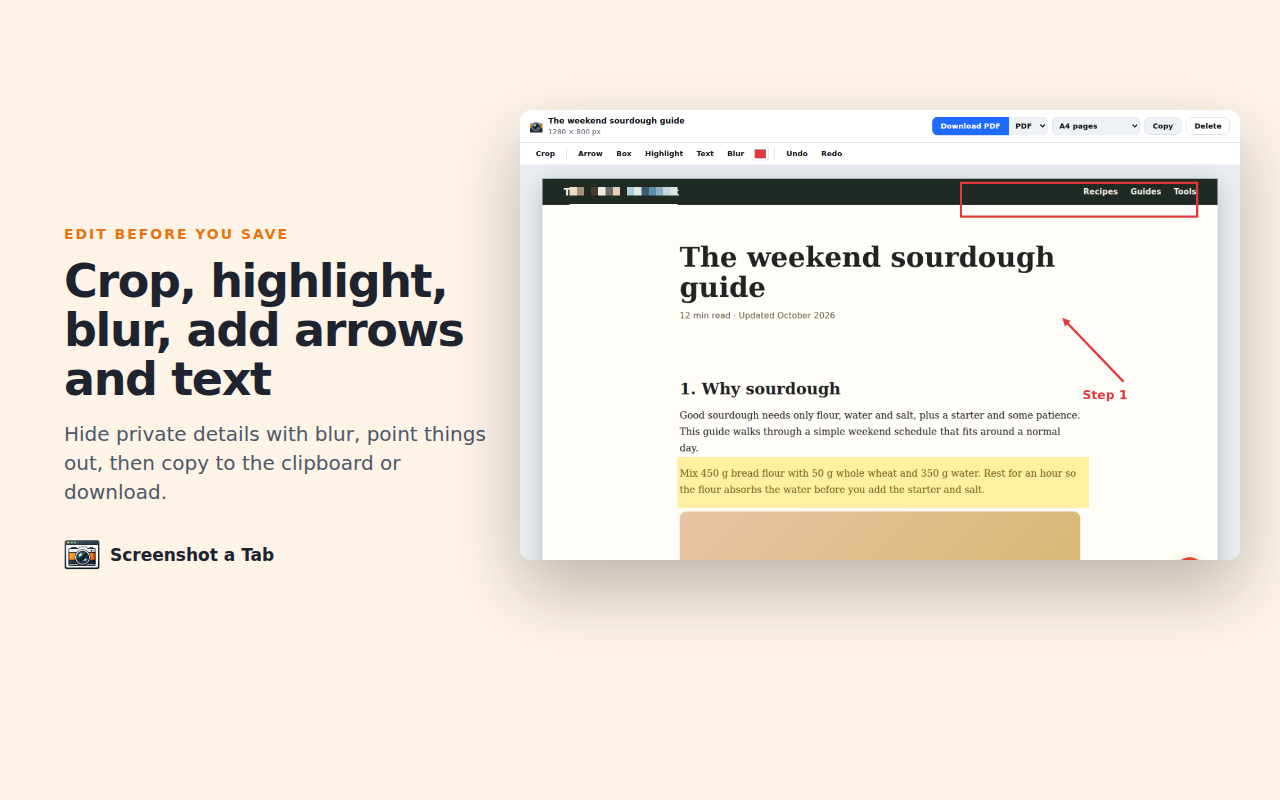
Annotate and hide private details
Crop to what matters, highlight a sentence, draw an arrow, add a note, and blur anything you don't want to share. Then copy it to the clipboard or download.
How it compares
| Screenshot a Tab | Many free tools | |
|---|---|---|
| Full page on long pages | ✓ | Often |
| Chat apps and inner panels | ✓ | Rarely |
| Sticky headers shown once | ✓ | Rarely |
| PDF, PNG and JPG | ✓ | Sometimes |
| No account, nothing uploaded | ✓ | Varies |
| Access to every site at all times | Not needed | Usually required |
Questions
How do I take a full page screenshot in Chrome?
Install Screenshot a Tab, open the page and click the icon, then Full page. Or press Alt+Shift+F. The page scrolls by itself and a preview opens where you can save PNG, JPG or PDF.
Can I save a web page as a PDF?
Yes. In the preview pick PDF and choose A4, US Letter or one long page. The PDF contains the page as images, so it looks exactly like the page did.
Why do other tools only capture part of ChatGPT or Gmail?
Those apps scroll inside a panel, not the page. Screenshot a Tab detects that panel and scrolls it instead, so you get the whole conversation or inbox.
Is it free?
Yes. Capturing and saving in every format are free with no limits and no watermark.
Are my screenshots uploaded?
No. They're made and stored on your computer. The extension keeps your last 12 screenshots locally so you can reopen them.
Which pages can't be captured?
Chrome doesn't allow extensions on its own pages (like chrome://settings) or on the Chrome Web Store. Everything else works.